Monday, 23 June 2014

All about Apple Push Notifications

What are Push Notifications?

Push notifications are great for keeping users informed with timely and relevant content, whether your app is running in the background or inactive. Notifications can display a message, play a distinctive sound, or update a badge on your app icon.

What you need for Push Notifications?

To add push notifications to your app, you need:
a. An iPhone or iPad Push notifications do not work in the simulator, so you will need to test on the device.
b. An iOS Developer Program membershipYou need to make a new App ID and provisioning profile for each app that uses push, as well as an SSL certificate for the server. You do this at the iOS Provisioning Portal.
c. Server : Push notifications are always sent by a server

We will do deep into creating Certificates, App Id, Provisioning Profiles etc :

Certificates : 

First open “keychain Access” —>certificate assistant—>Request a certificate from a certificate authority menu item 


Give email address and select the 'Saved to disk' radio button
Press continue and save the certificate request to your disk and press the done button.  You will need this file at two points later in the process.

Till now we are done with the Keychain application, We will get back to this after some process.
Now go to the Apple Developer Portal  -> Select Certificates.

Under "Development", if it is empty like below, Click Request Certificate,click on “+” to create —>select the “IOS App Development” and click “continue”
and upload the certificate which we saved to disk from keychain access.


Click Submit and you will find this window. Click Download and save it in a folder.


You will then need to install this into the keychain access program by double clicking the .cer file after it is saved to your system.  This will cause the keychain access program to install the certificate and you should see something similar to the following in the keychain access application


I have expanded the top level item to show the private key that is part of the certificate.  You will need that private key to generate a certificate file for the C# application to use.
private key—>right click—>Export and Save .p12file  (“developer_private_key.p12”)—>name i given and give password as u want and keep it some where  .the password will be used for further process.


Now we are done with the Certificates part. We will move to App ID.


App ID : 

Click on Apple id—> “+”


Give name and Bundle id (id same as project bundle id)—>select push notifications—>continue


App id is displayed in the page, with the application services 

Click Edit and you will be navigated to Configure App id page.


Check the 'Enable for Apple Push Notification service' check box, and the two 'Configure' buttons will be enabled.  Press the 'Configure' button for the 'Development Push SSL Certificate'.  You will then be presented with a series of dialogs to guide you through creating the SSL certificate.


click continue.If this is not available create a certificate as we created first time i.e .CSR
then choose file .csr from saved path and click on Generate


Click Download and Done 
Save the certificate('aps_developer_identity.cer')  we will be using this for creating .p12 in further steps


Wednesday, 6 November 2013

Learning Phonegap

                           PhoneGap/Cordova


PhoneGap is a free and open source framework that allows you to create mobile apps using standardized web APIs for the platforms.
Before developing for any of the platforms, install cordova's command-line interface (CLI).

Prerequisites 1:

Before running any command-line, you need to install SDKs for each platform, to check whether SDKs are installed or not. 

1. Open the command line (On the mac command line is available via "Terminal" application, On windows its available as "Command Prompt" under Accessories).

2. For the instance will check for android on MAC, In the terminal type "android"
    $ android                                                                                                                                         

3. If  Android SDK is not installed in your system. Then download it from here

4. After that you need to Setup the PATH environment. 

a. Setup the PATH environment variable on Mac OS:

  • Open the Terminal program (this is in your Applications/Utilites folder by default).
  • Run the following command
  • touch ~/.bash_profile; open ~/.bash_profile
  • This will open the file in the your default text editor.
  • You need to add the path to your Android SDK platform-tools and tools directory. In my example I will use "/Development/android-sdk-macosx" as the directory the SDK is installed in. 
  • Add the following line:export PATH=${PATH}:/Development/android-sdk-macosx/platform-tools:/Development/android-sdk-macosx/tools
  • Save the file and quit the text editor.
  • Execute your .bash_profile to update your PATH.  source ~/.bash_profile
  • Now everytime you open the Terminal program you PATH will included the Android SDK.
b. Setup the PATH environment variable on Windows:
  •  From the Desktop, right-click My Computer and click Properties.
  • Click Advanced System Settings link in the left column.
  • In the System Properties window click the Environment Variables button.
  • Select the PATH variable from the System variables section.
  • Select the Edit button.
  • You need to add the path to your Android SDK platform-tools and tools directory. In my example I will use "C:\Development\android-sdk-windows" as the directory the SDK is installed in. Append the following text into the text box:
;C:\Development\android-sdk-windows\platform-tools;C:\Development\android-sdk-            windows\tools
  • Save your edit. Close the Environment Variables dialog.
  • Additionally, you may need to include %JAVA_HOME%\bin to your PATH as well. To check to see if this is required, run a command prompt and type java. If the program can not be found add %JAVA_HOME%\bin to the PATH. You may need to specify the full path instead of using the %JAVA_HOME% environment variable.
  • Finally, you may need to include %ANT_HOME%\bin to your PATH as well. To check to see if this is required, run a command prompt and type ant. If the program can not be found add %ANT_HOME%\bin to the PATH. You may need to specify the full path instead of using the %ANT_HOME% environment variable.


Prerequisites 2:

Now we are done with installing SDK and setting up the paths, now will move further. We will install Node.js before installing cordova/phonegap

 You can install Node.js in different ways like Install Node with Homebrew or just download and install Node.js.

Following installation, you should be able to invoke node or npm on your command line.


Installation of Cordova :

Now at last we are here 

1. Install the cordova utility. In Unix, prefixing the additional sudo command may be necessary to install development utilities in otherwise restricted directories:

$ sudo npm install -g cordova                                                                                                                    


The installation log may produce errors for any uninstalled platform SDKs. Following installation, you should be able to run cordova on the command line.


Create the App :

$ cordova create hello com.example.hello HelloWorld                                                                             

It may take some time for the command to complete, so be patient. Run the cordova -d to see information about progress.

The first argument specifies a hello directory to be generated for your project. Its www subdirectory houses your application's home page, along with various resources under css, js, and img, which follow common web development file-naming conventions. The config.xml file contains important metadata needed to generate and distribute the application.

The other two arguments are optional: the com.example.hello argument provides your project with a reverse domain-style identifier, and the HelloWorld provides the application's display text. You can edit both of these values later in the config.xml file.


Add Platforms :

All subsequent commands need to be run within the project's directory, or any subdirectories within its scope:

$ cd hello                                                                                                                                                  

Before you can build the project, you need to specify a set of target platforms. Your ability to run these commands depends on whether your machine supports each SDK, and whether you have already installed each SDK. Run any of these from a Mac:

    $ cordova platform add ios                                                                                                                   
    $ cordova platform add android                                                                                                            


Build the App :

By default, the cordova create script generates a skeletal web-based application whose home page is the project's www/index.html file. Edit this application however you want, but any initialization should be specified as part of the deviceready event handler, referenced by default from www/js/index.js.

Run the following command to iteratively build the project:

$ cordova build                                                                                                                                          

If everything goes good you will get the output

Generating config.xml from defaults for platform "android"                                                                     

Preparing android project                                                                                                                          

Generating config.xml from defaults for platform "ios"                                                                            

Preparing ios project                                                                                                                                  

Compiling app on platform "android" via command                                                                                 "/Users/tekMunk/hello/platforms/android/cordova/build" 

Compiling app on platform "ios" via command "/Users/tekMunk/hello/platforms/ios/cordova/build"     

Platform "android" compiled successfully.                                                                                               

Platform "ios" compiled successfully.                                                                                                       


Friday, 1 November 2013

Introduction to ChocolateChip-UI

ChocolateChip-UI

We’re going to look at how to throw together a simple navigable app with the ChocolateChip-UI framework. This will require familiarity with HTML. You don’t need to be good with CSS or even know how to write JavaScript. ChocolateChip-UI provides functionality out of the box to provide functionality for Web apps.
ChocolateChip-UI uses a particular combination of simple tags to define the structures that make up a mobile app. These are: nav, article, section, ul, li,div, aside, span, p and h1 through h5.
To follow along, download the framework and grab the folder “chui”. This contains the files that comprise ChocolateChip-UI. We’re going to use three files: chocolatechip-3.0.4.min.js, chui-3.0.4.min.js and chui-ios-3.0.4.min.js.
To make a Web page behave like an app in the browser, we need to first provide some meta tags. Here is the basic skeleton with appropriate meta tags and links to the ChocolateChip-UI resources:
<!doctype html>
<html lang="en">
<head>
  <meta name="viewport" content="initial-scale=1.0, maximum-scale=1.0, user-scalable=no">
  <meta name="apple-mobile-web-app-capable" content="yes">
  <meta name="msapplication-tap-highlight" content="no">
  <meta charset="UTF-8">
  <title>Document</title>
  <link rel="stylesheet" href="chui/chui.ios-3.0.4.min.css">
  <script src="chui/chocolatechip-3.0.4.min.js"></script>
  <script src="chui/chui-3.0.4.min.js"></script>
</head>
<body>
</body>
</html>
The app will reside inside of the body tag. When you look at the screen of a mobile devices, you notice that most apps use two main parts to present everything on the screen: a nav bar and everything below that. ChocolateChip-UI uses a combination of a nav tag and an article tag to create each screen of the app. Since we’re going to make a navigable app, we’ll need to put together a number of screen, each consisting of a nav andarticle.
The first screen will be the current view, and all others with be upcoming. ChocolateChip-UI designates this navigation status using two classes: “current” and “next”.
Every nav will have at least an h1, which is the title that appears in the navigation bar. Let’s start building this. We’ll need to create a navigation bar and an article. ChocolateChip-UI forces the article to fill the screen. Every article should have one child – a section tag. All the content will go in thesection. It will automatically provide inertia scrolling when the user swipes.
Every article tag must have a unique id. This is used during navigation so that ChocolateChip-UI knows where to go and where to return to. If you find at some time that your app is not going to where you want or not returning properly, check that your articles have the ids they need and that you have all uses of them spelled identically.
Here is the basic app shell.
<!doctype html>
<html lang="en">
<head>
  <meta name="viewport" content="initial-scale=1.0, maximum-scale=1.0, user-scalable=no">
  <meta name="apple-mobile-web-app-capable" content="yes">
  <meta name="msapplication-tap-highlight" content="no">
  <meta charset="UTF-8">
  <title>Document</title>
  <link rel="stylesheet" href="chui/chui.ios-3.0.4.min.css">
  <script src="chui/chocolatechip-3.0.4.min.js"></script>
  <script src="chui/chui-3.0.4.min.js"></script>
</head>
<body>
  <nav class="current">
    <h1>Fruits</h1>
  </nav>
  <article class="current" id="fruits">
    <section></section>
  </article>
</body>
</html>
You’ll notice that when it loads in the browser, the title appears in a nav bar, but there is nothing below that. ChocolateChip-UI uses unordered lists with the class list to display tabular data. We can give the list a title by putting anh2 right before the list. To display data in each list item, we use an h3 as the title and an h4 as the subtitle and a paragraph tag as the item detail. If we put the class nav on a list item, we get the right facing caret that iOS uses to indicate a navigable item.
To make this list able to navigate to other articles, we need to indicate where each list item should go. We do this using an HTML5 data attribute: data-goto. We give it the id of the article to which it will go. This will result in automatic navigation when the article that it points to exists.
This example includes the data- attributes:
Here’s what the navigation list should look like so far:
Navigation list
Now we need to add an article with the id for each fruit: apples, oranges, bananas, mangos and avocados. We’ll also want to provide a nav with an h1with the title of each fruit. Because these navs and articles are not current in navigation, we need to explicitly give them the class next. This will put them out of view until the navigation occurs.
This creates a navigable app, except for one problem. After the user selects a fruit and the app navigates to that screen, there is no way to get back. We can provide a way back by adding a back button in each nav bar right before the title.
Detail page of Navigation list
To complete our simple app we just need to add a list to each of the fruit articles. We can use the same pattern we used on the main article.
To support Android or Windows Phone 8, you just need to switch out the reference in the CSS link: chui/chui.ios-3.0.4.min.css. Change ios for androidor win.
Of course, this is just the most basic setup for an app. In real life you would want to get data dynamically through Ajax requests and output it to your app using templates. Sounds like another article.

Open Source Programming Tools for Mobile web


When it comes to programming for mobile devices, choice quickly becomes dilemma. Do you target the lucrative iPhone market at the expense of Android's rising tide? Do you go native or write code to the mobile Web? And while a single stack of code that performs optimally on an increasingly wide array of platforms, form factors, and devices would be the dream, the reality is a fragmented trial in which rudimentary tasks can often be a challenge.
But with challenges and opportunity come curious minds. And the crop of developers turning their attention to building out mobile tools and libraries are quickly establishing a vibrant ecosystem to aid mobile developers -- especially those who've chosen to target the mobile Web.
Mobile Web programing tool: 
1. ChocolateChip-UI 
The small screen real estate of mobile devices places a premium on effective interface design. Enter Robert Biggs, a Web developer in Northern California who built the ChocolateChip-UI, a framework for whipping up a worthwhile mobile interface in HTML.
Technically, the underlying code created by the developer is WAML (Web Application Markup Language), a markup language built on top of HTML5. Most of the easy work is done with WAML tags like <slider> or <stack>. The framework's JavaScript works through the WAML and turns it into pure HMTL5 for the smartphone.
This combination is as light as a feather. You can mix in your own HTML, CSS, and JavaScript into the WAML, and it navigates the ChocolateChip-UI translation process just fine.
While this approach isn't perfect, I can understand why Biggs chose this route. I've been lost in the JavaScript closures of many mobile development tools before and it's not pretty.
ChocolateChip-UI's collection of WAML widgets is fairly comprehensive, all of which appear like the standard iPhone UIs. It even includes extras like deletion lists for enabling users to eliminate elements from a list with a few flicks of the finger.

2. Mobl
Download Mobl
JavaScript has many rough edges that continue to chafe Web developers. The Mobl team decided to smooth these edges while building a framework for creating mobile applications that run in WebKit browsers. Instead of writing your instructions in HTML, JavaScript, and CSS, you write them in Mobl and the Mobl compiler turns them into HTML, JavaScript, and CSS for the mobile browser.


3. jQuery Mobile

Download jQuery Mobile
When the folks behind the jQuery framework decided to tackle the mobile platforms and build a simple UI toolkit for smartphones, it was clear it would attract widespread attention and experimentation. The result is a project that's well supported by many of the major hardware manufacturers and is bound to be relatively successful on mobile devices.
The simplest part of jQuery Mobile is its HTML-centered layout. Pages are built in DIVs and other standard HTML components such as <LI> tags. As a result, jQuery Mobile is easy to integrate with dynamic websites and CMSes because making use of it is often just a matter of adding a new theme or skin. There are, for instance, several Drupal themes and modules built around jQuery Mobile.
The tight integration with jQuery means that many but not all of the plug-ins for the desktop will also work with mobile websites. There are also a few mobile plug-ins built to extend the mobile framework. The light touch of the framework and the fertile ecosystem built around jQuery Mobile means we'll probably see its power only grow.

4. The-M-Project

Download The-M-Project
If jQuery Mobile's collection of methods and styles aren't sophisticated enough, The-M-Project offers a collection of widgets that are compiled down into jQuery Mobile objects. It handles many of the nitty-gritty design details, such as placing an icon in just the right spot, so you can instead focus on the bigger picture.
The code is structured with the Model-View-Controller pattern. Much of the work is building a large JSON structure that defines the different pages and the widgets that sit within those pages. The layout is handled by The-M-Project.
The behavior of the app is defined by creating functions attached to various event hooks for each page. The-M-Project takes care of ensuring the events reach their location.
It's worth nothing that the build and deploy process is integrated with Node.js. The code for building your great creation also runs in Node.js; the testing is done using the same server. When it works, you can carry the mixture of code and library over to any Web server, or you can integrate it further with Node.js.

5. Touchqode

Dowload Touchqode
You're sitting in a cafe in Paris, at the top of Mount Everest, or anywhere else without your laptop or desktop. An idea strikes you. Do you scribble it on a scrap of paper and get back to it later? Not if you have Touchqode running on your Android phone. (An iPhone version is coming soon.)
This tiny development environment packs a surprisingly large number of features into a tiny screen. The code is highlighted, the scripts can run locally, and you can sync your new code via FTP. If the boss calls when you're on the go, you should have little trouble fixing something that needs only a few keystrokes. I can't imagine writing long programs with my Android phone, but given that authors have composed entire novels on their cellphones, it may be too soon to assume that users will only use Touchqode to create a few lines of occasional code.
Either way, Touchqode is good in a pinch.

6. LimeJS

Download LimeJS
One of the reasons why Flash games are so compelling is because of the fertile ecosystem of library writers who can sell their work to Flash developers. DigitalFruit created LimeJS to offer similar support to developers who want to use the WebGL objects that are part of HTML5.
The early results of LimeJS are effective in WebKit browsers. The code is technically JavaScript, but the structure looks similar to good, old-fashioned C, with calls to the OpenGL library. It should be possible to automatically cross-compile some OpenGL to this library, although this will probably require some hand-tuning.
LimeJS offers are a few worthwhile features for simplify game development. There are scenes filled with layers and a director that will fire events according to a flexible schedule. There are animations and transitions that move the sprites across the pages. All of the features will be familiar to people who've written casual games before.
The development environment includes several modern touches. The basic building is handled in Python, and the final package can be bundled together with Google's Closure Compiler so that it will download faster.
LimeJS will be attractive to anyone who's spent time developing games for OpenGL frameworks in other environments. While the final syntax is JavaScript, it doesn't rely on the more complex ideas that make JavaScript off-putting to some, at least until the Closure Compiler does its work.

7. Jdrop

More about Jdrop
On its face, Jdrop appears to be a big pile of JSON that might be mistaken for an open NoSQL database. In practice, this Web resource is tuned to help mobile developers marshall performance data between the tiny screens and the desktop, where it can be better analyzed.
To ease the difficulty of extracting performance feedback from mobile devices, Jdrop offers Mobile Perf, a bookmarklet that aggregates a set of performance bookmarklets, including Firebug Lite, Page Resources, DOM Monster, SpriteMe, CSSess, and Zoompf. Through Mobile Perf, you can debug your app on a phone and automatically store the resulting data in the Jdrop cloud for later analysis from your desktop, providing an interesting way to debug true mobile performance and to examine the HTML source of your favorite mobile sites.

8. XUI, Zepto

Download XUI
Download Zepto

Most of the frameworks described here exist to do the heavy lifting by turning a description of the application, often written in their own language, into something that looks pretty good on the page. XUI and Zepto are very different. They begin with the idea that HTML and CSS are already pretty good at displaying most of the things that one might want to display and only offer help creating and modifying the DOM.
These libraries won't lay out your widgets or even create widgets of any kind. You get what HTML offers, then you control its appearance with CSS. The library is there to help you manipulate the DOM by offering features like the ability to find elements, attach classes, and juggle events.

9. Jo and Sencha Touch

Download Jo
Download Sensa Touch

Jo and Sencha are two collections of widgets that create card-oriented mobile applications in JavaScript. The structure is defined by a collection of JavaScript functions that create the widgets that are arranged by the libraries to look good on the screen. The code for these often includes big, nested function calls that assemble the parts and then call other functions that assemble these parts into bigger parts.
Sencha Touch is built by a burgeoning company, Sencha, that also offers a framework for regular Web pages. It sells a collection of support plans but does not charge for a commercial license to use Sencha Touch. The company's development team answers questions for users and maintains an open support forum.
Jo is an open source project delivered with the OpenBSD license. It is free to use, and Dave Balmer, Jo's developer, runs support for those who need help.
I've built several Web applications with Sencha Touch and have found the process relatively easy because the framework handles many of the layout questions. In the best cases, I simply created a new widget object, and the Touch framework would squeeze it into to the page so that it looked nice. Some of the resulting apps worked well on both the iPad and the iPhone despite the different screen sizes.
Both Jo and Sencha Touch are producing more code than documentation right now. Each should be filling these gaps soon, but for the time being, Sencha's commercial support offers the deeper documentation of the two.

10. jQTouch

Download jQTouch
jQTouch was one of the first great frameworks for mobile Web applications. Its creator, David Kaneda, has since left the project to work for Sencha, but Jonathan Stark has taken the mantle and continues to add worthwhile tweaks to the code.
Applications in jQTouch are built by inserting HTML in DIVs. jQTouch parses these DIVs looking for the right classes, then inserts its own code for handling events.
I've built several Web applications on top of jQTouch and found it's as simple as creating a Web page. It's also a bit easier to integrate with dynamic Web tools like JSPs, PHP, and other server-based frameworks.
In the right situations, the code looks identical to native apps. But sometimes I've found odd glitches and weird transformations that don't make sense. Some of the touch events are also a bit slow on certain platforms.

11. PhoneGap

Download PhoneGap
Another of the biggest and most successful open source mobile frameworks is PhoneGap, a very simple collection of routines that allows you to build native apps for smartphones by writing HTML, JavaScript, and CSS. Many of the JavaScript frameworks described in this roundup are meant to be bundled with PhoneGap before being sent to the App Store.

Thursday, 24 October 2013

How to Translate your WordPress Website using qTranslate Plugin

How to Translate your WordPress Website using qTranslate Plugin

This tutorial will teach you how to translate your WordPress based website in multi-languages using qTranslate plugin. Below are step by step implementation with Colorway theme but this process is only applicable with WordPress themes.

1. Introduction

qTranslate is a free plugin which helps to translate the theme to multilingual content with the help of wordpress. qTranslate supports infinite languages, which can be easily added/modified/deleted via the comfortable Configuration Page. All you need to do is activate the plugin and start writing the content!

2. Download qTranslate plugin

Download the plugin.

3. Plugin Installation

Installation of plugin is very easy.
  • Finish downloading the plugin
  • Extract the files.
  • Paste the qTranslate plugin directory in /wp-content/plugins/ directory
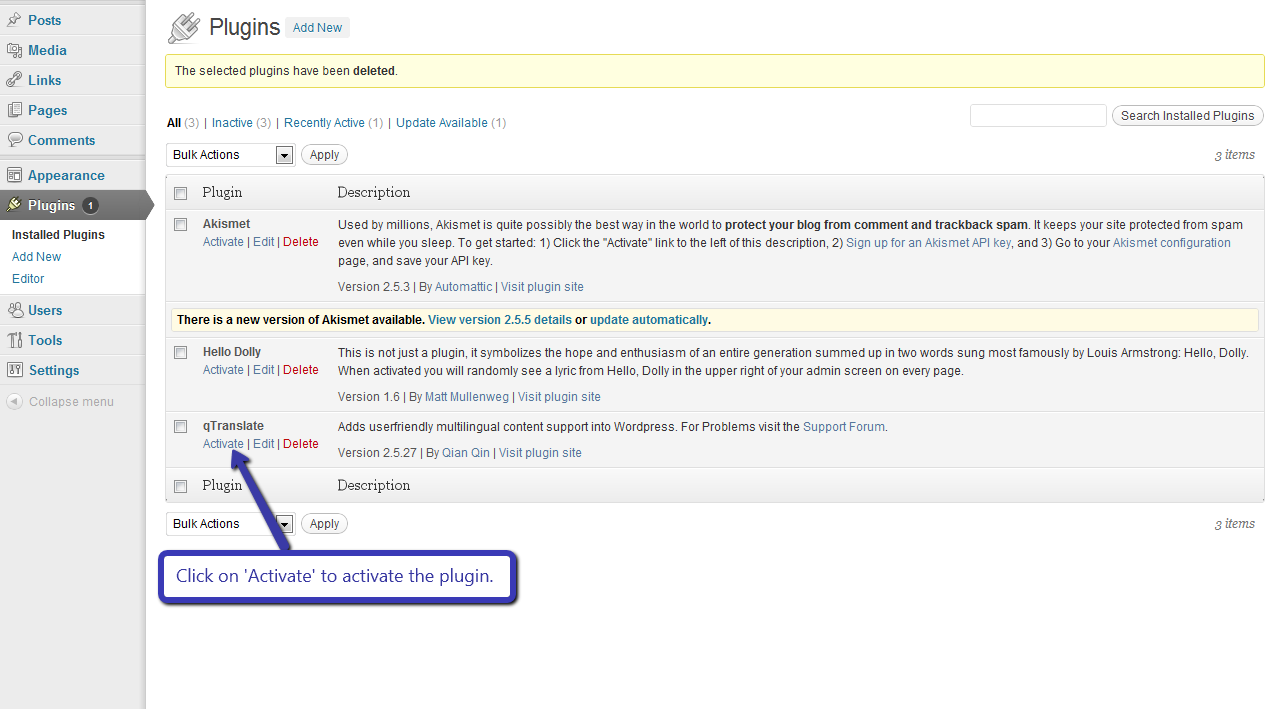
  • Activate the qTranslate plugin through the ‘plugins’ tab in WordPress.
Refer image below.
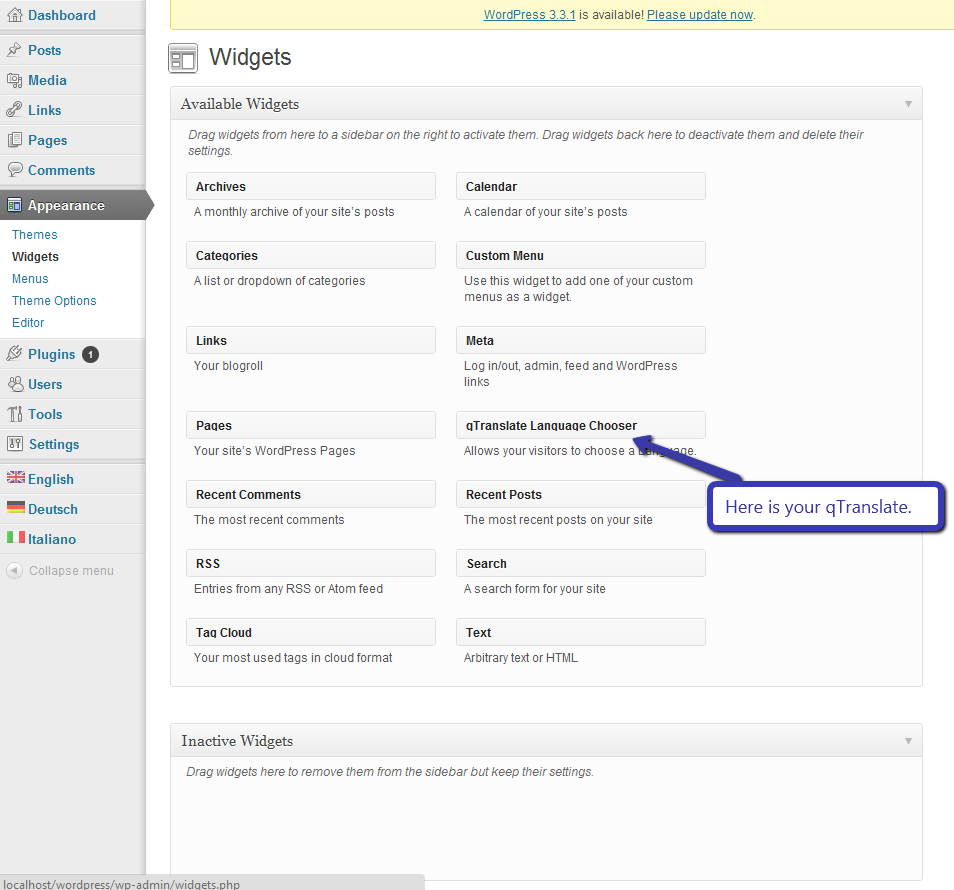
As soon as you do that, your qTranslate will show on widgets i.e.
Appearance  -> Widgets
From here you can drag and drop it to any of your widget areas, This will be explained in depth later on.

4. Configuring qTranslate with Colorway WordPress Theme

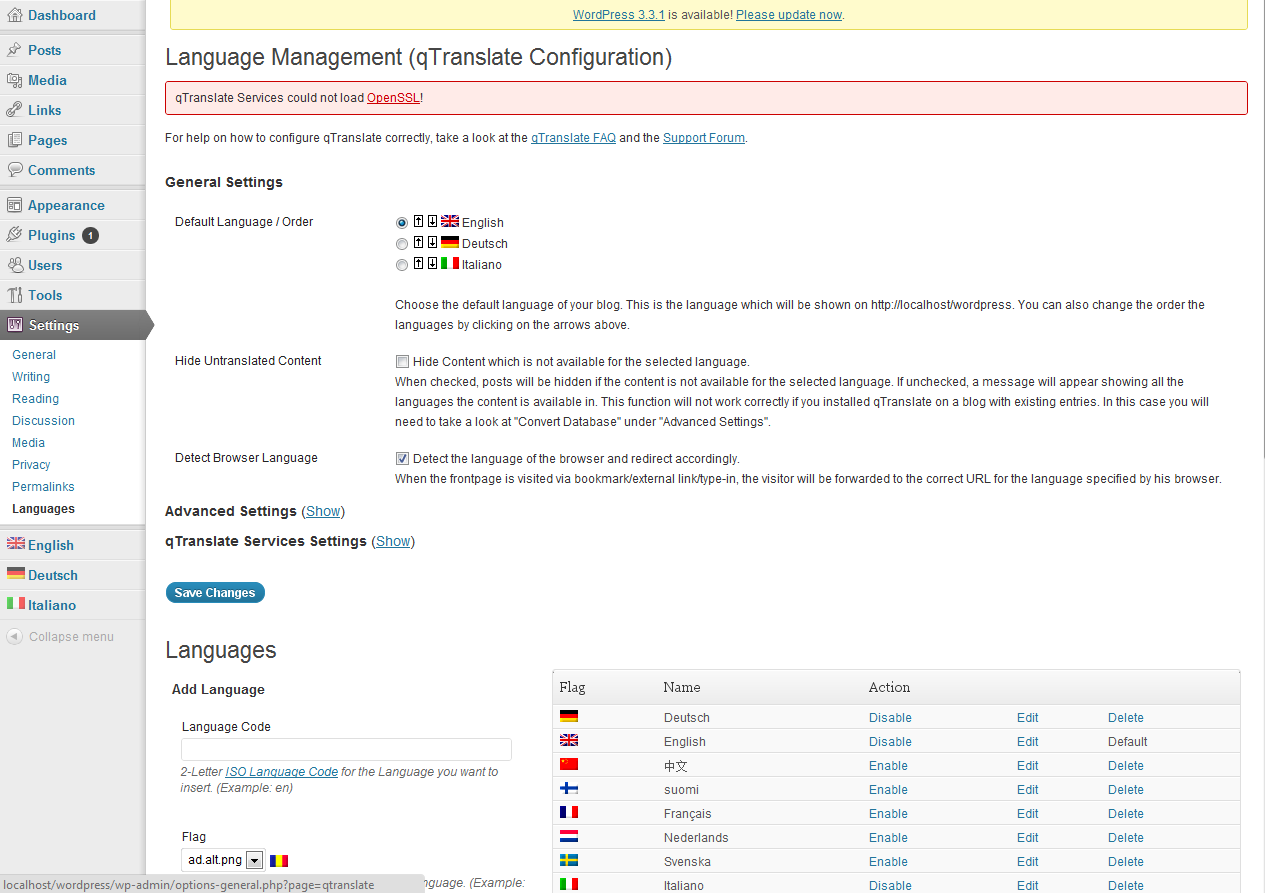
To configure go to settings and then choose languages from WordPress dashboard i.e.
Settings -> languages
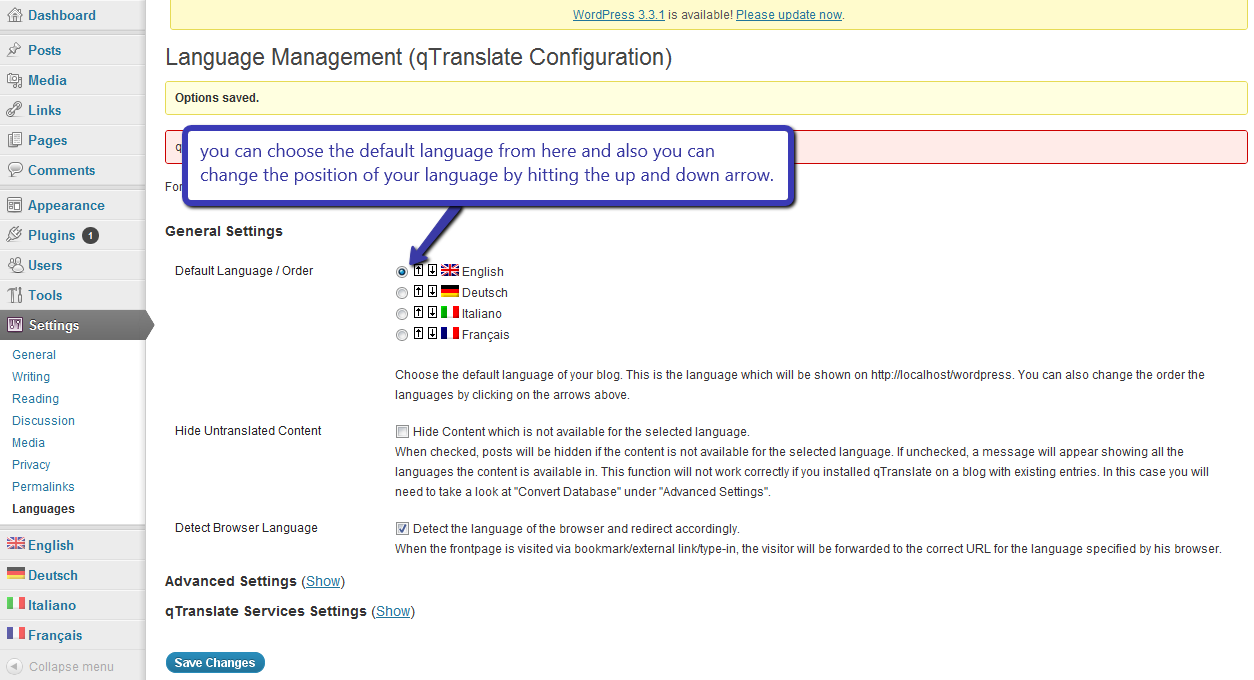
This will open a setting window in WordPress as shown below
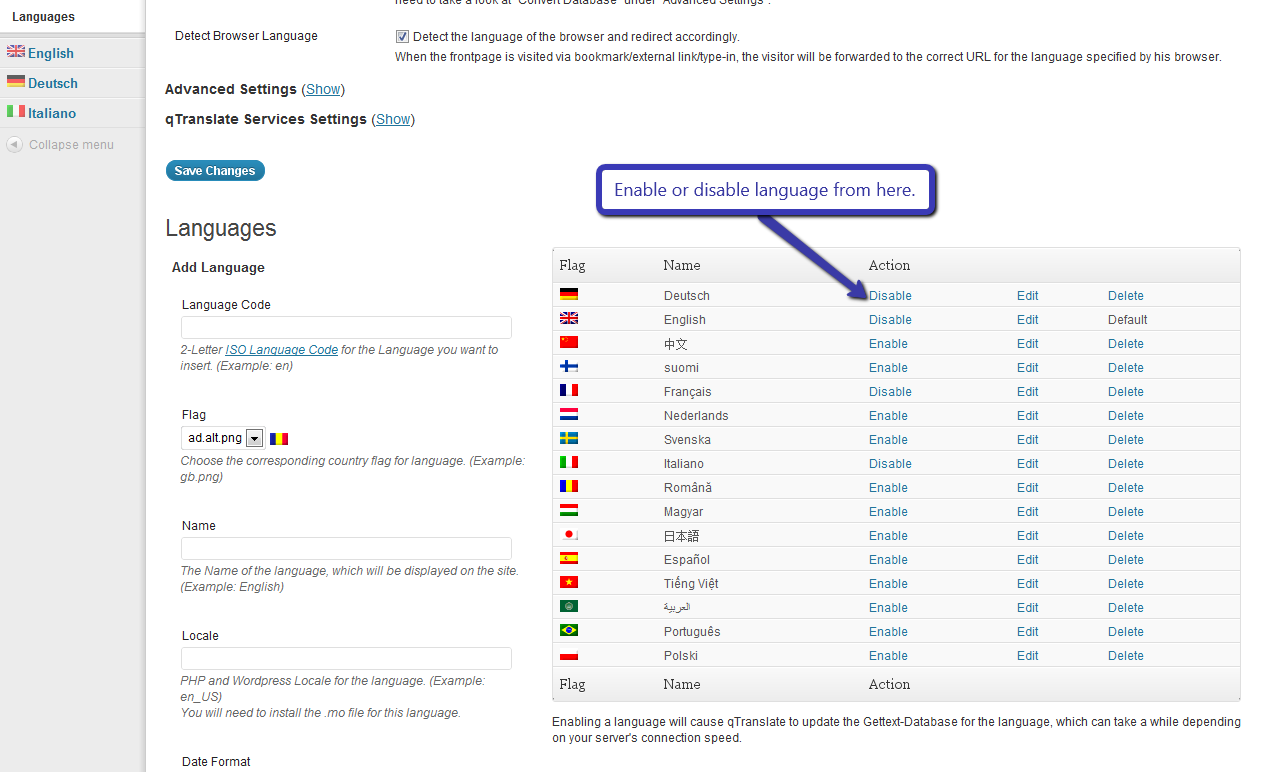
 Selecting language
You can enable or disable language in which you want to translate. You can choose multiple language at a time.
When you enable a language it will show under general setting heading. From here you can select the default language what do you want under “Default Language / Order”. And also you can choose the order of the language from here.
5. Enabling the qTranslate widget
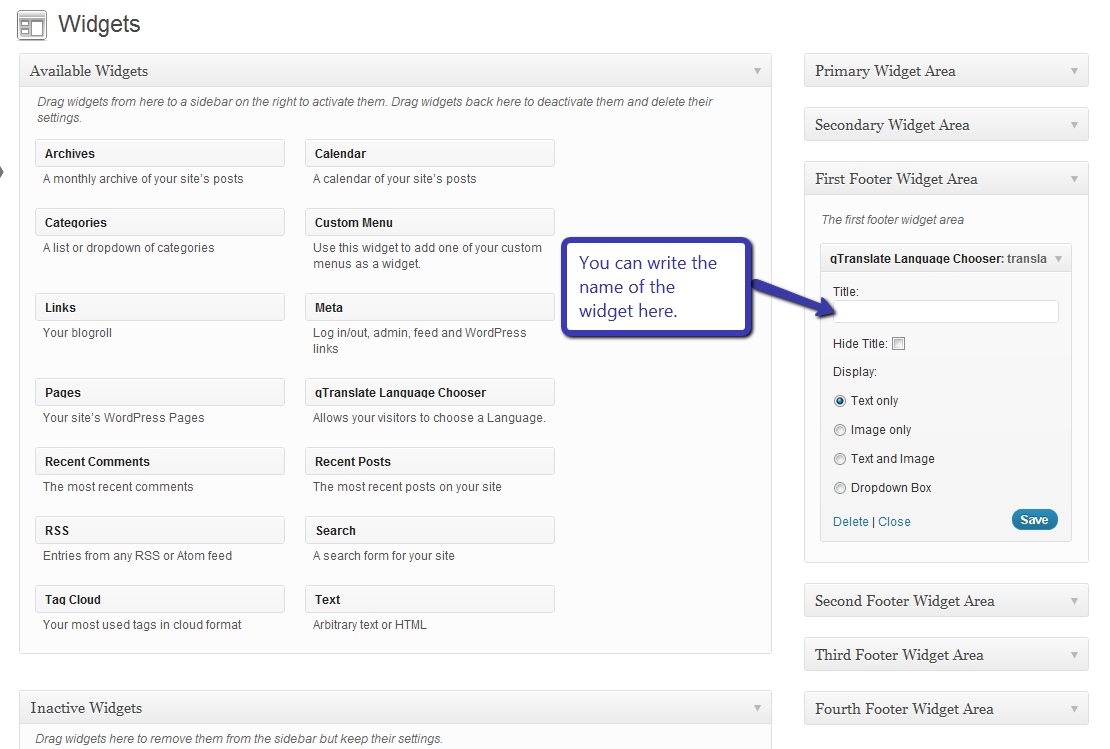
Enabling the widget is very easy. Just go to widgets section and drag and drop the “qTranslate Language Chooser” in your desired position i.e in footer or in sidebar.
Appearance -> widgets
You can write the name of your widget, by default it is blank
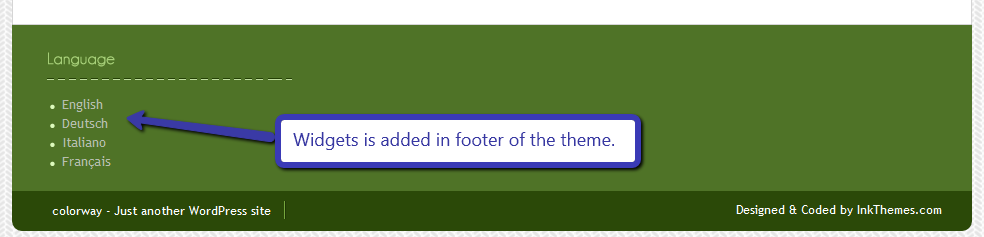
Suppose we add the widget in the first footer area then it will be displayed like this
6. How to add content in different languages
Changing the content of Home page
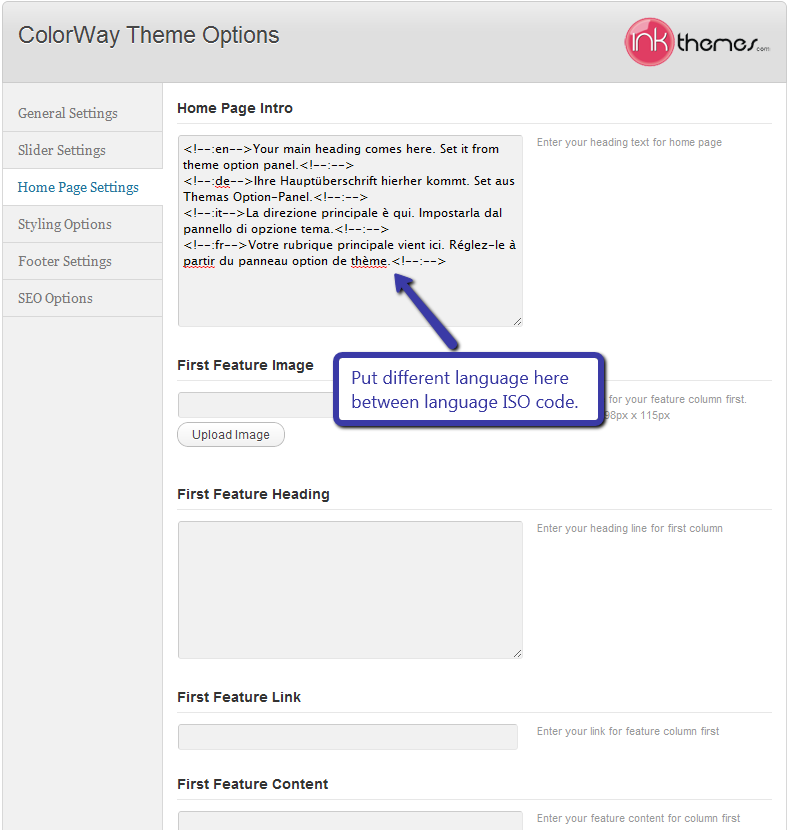
To change  the content of home page just go to theme option panel and using language ISO code, put all the language translation in the same text area.
Example is shown below
Suppose we want  to translate the ‘Home Page Intro’ of the ‘Home Page’
Then put the code in the text area, As shown in the image below. The en, de, it, fr ISO codes stands for English, German, Italian & French languages. You can similarly use the ISO codes for other languages as well.
Then this will convert the home page intro in the desired language when selected by user
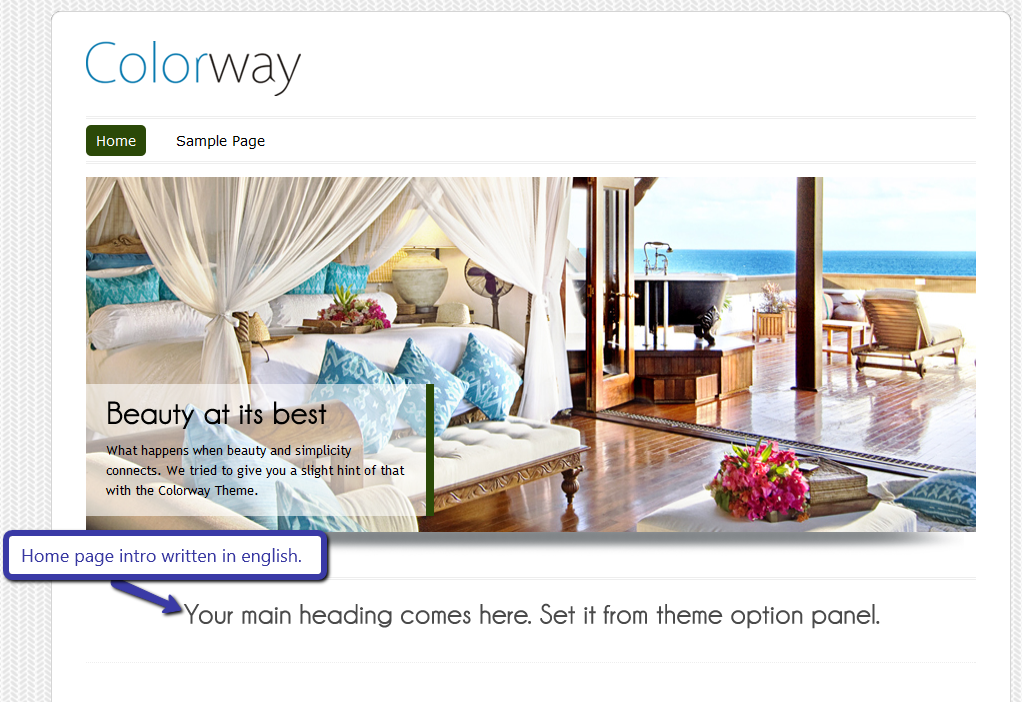
Firstly the content is shown in English shown in image
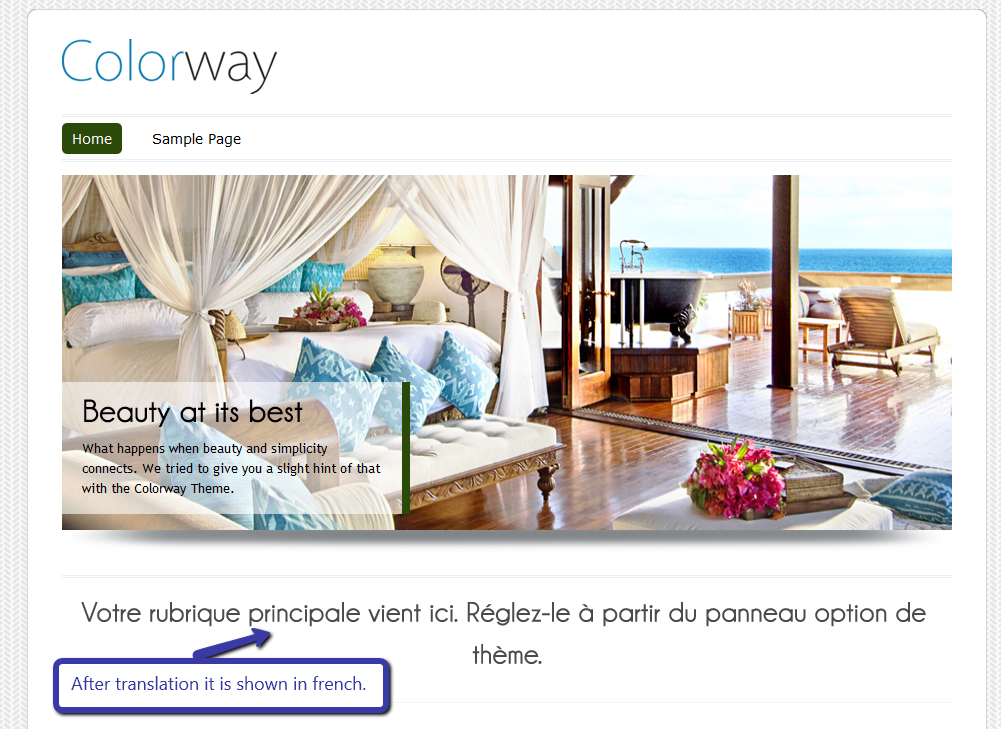
Now when we translate the intro in French then it will be shown like this

Adding the page in different language
To add the page in different language you have to just add a new page from page section
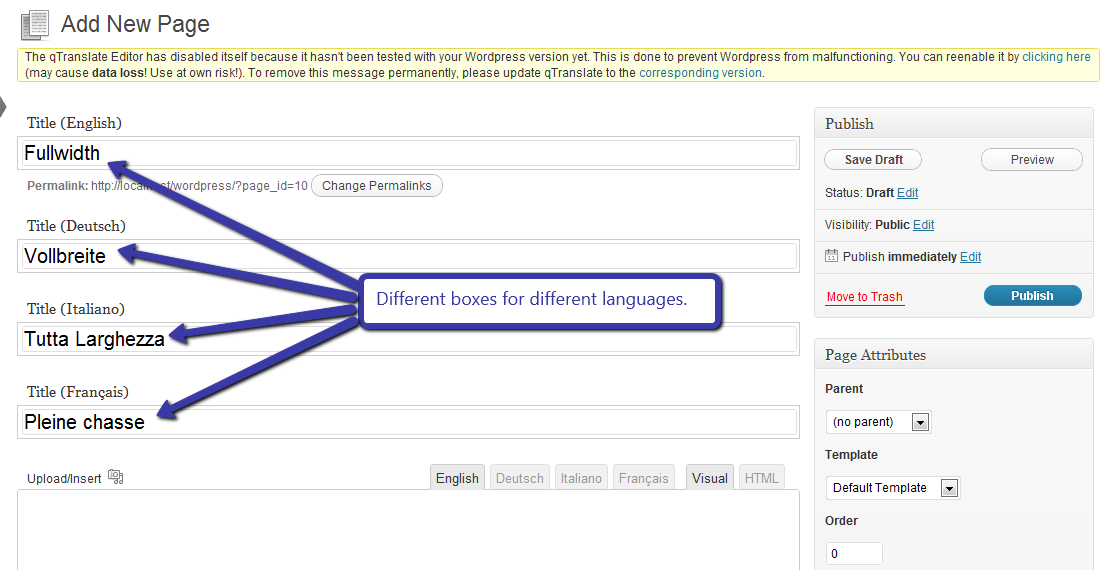
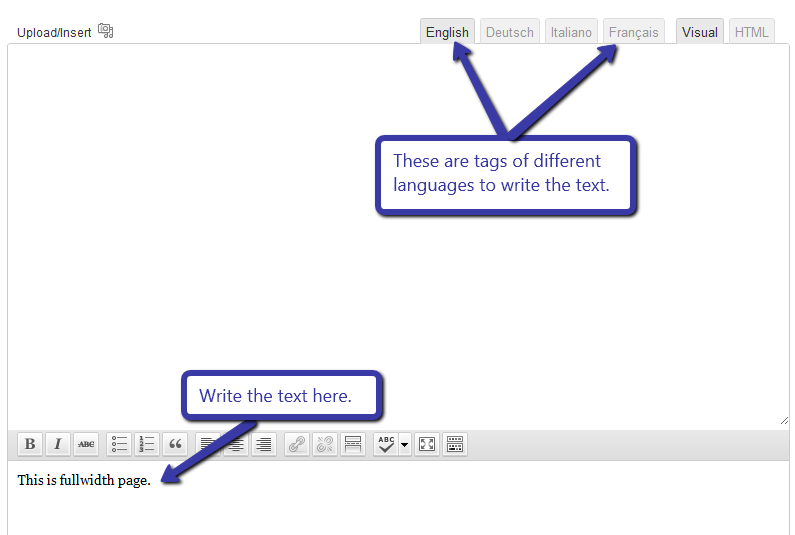
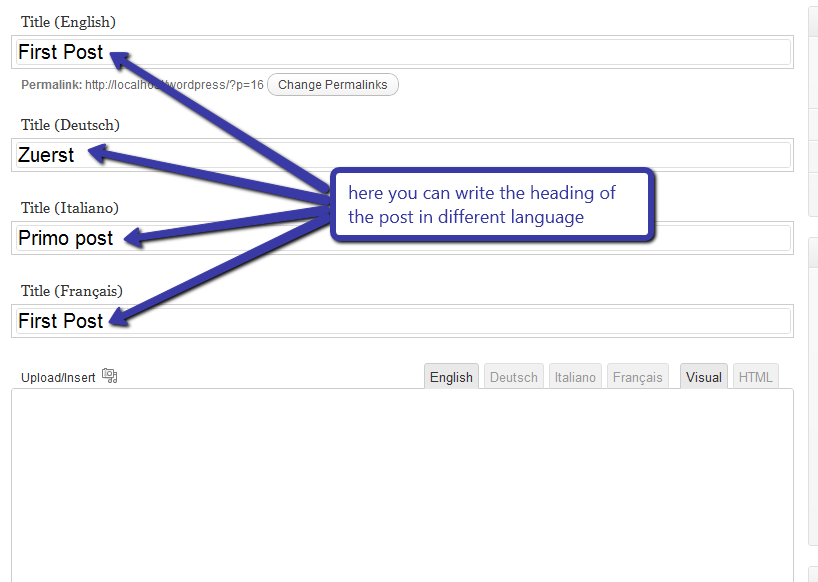
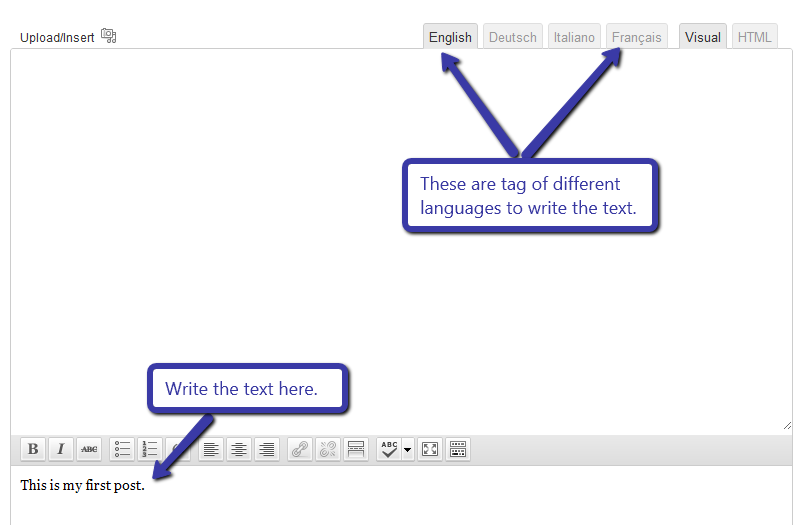
And put the heading in different language and also there are different tag for every language to write their content.
Suppose we are making the ‘Fullwidth’ page, then we will write the name in each text box.

And write the text in text area in each tab i.e.

After writing the text publish the page.
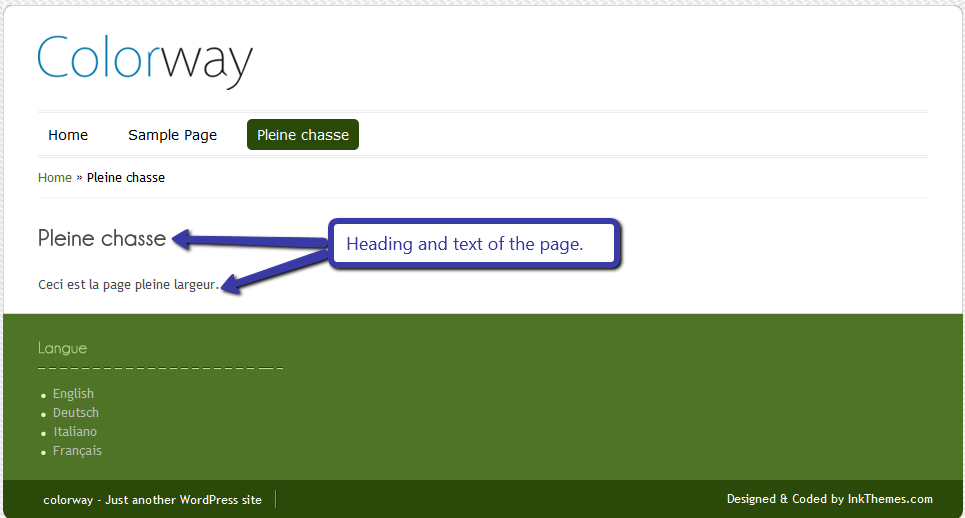
Now if we select the French language for fullwidth page the it will be shown like this
Adding the post in different language
To add the post in different language you have to just add a new post from post section
And put the heading in different language and also there are different tag for every language to write their content.
Suppose we are adding a post in blog page. Then we have to write the heading in different languages in text box. Shown in image
And write the text in text area in each tab i.e
After writing the text publish the post.
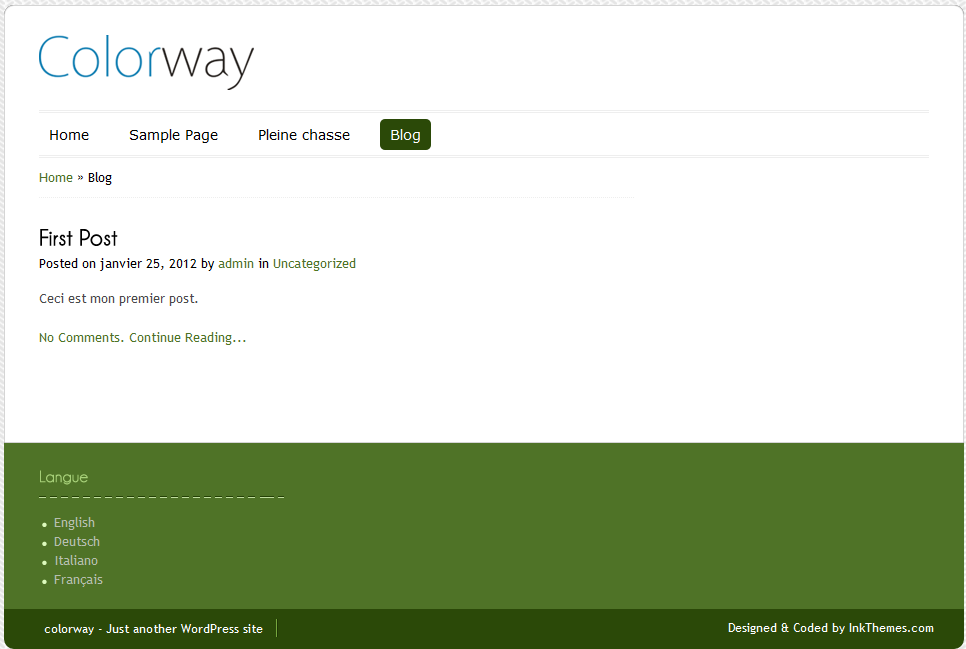
Now if we select the French language for post then it will be shown like this

Translate text in php files

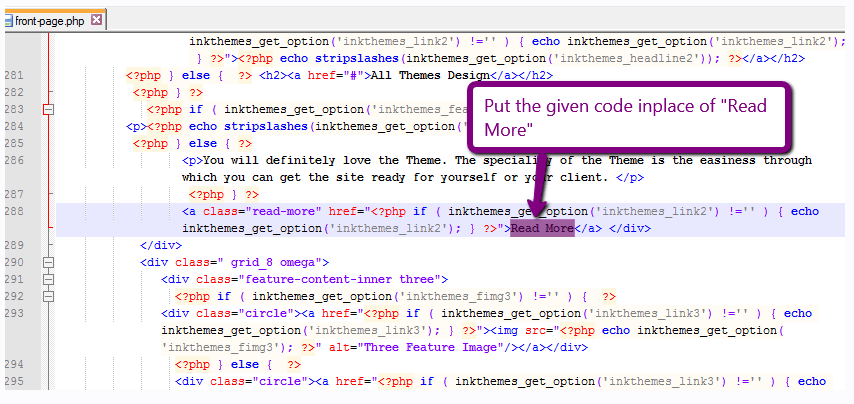
Translating the text in the php files is very easy. You just need to edit front-page.php file and place given code as shown in image.
<?php _e(“<!–:en–>english text<!–:–><!–:sv–>german text<!–:–>”); ?>
You just need to mention your language text in place of english text and german text.
front page

Translate Widget title

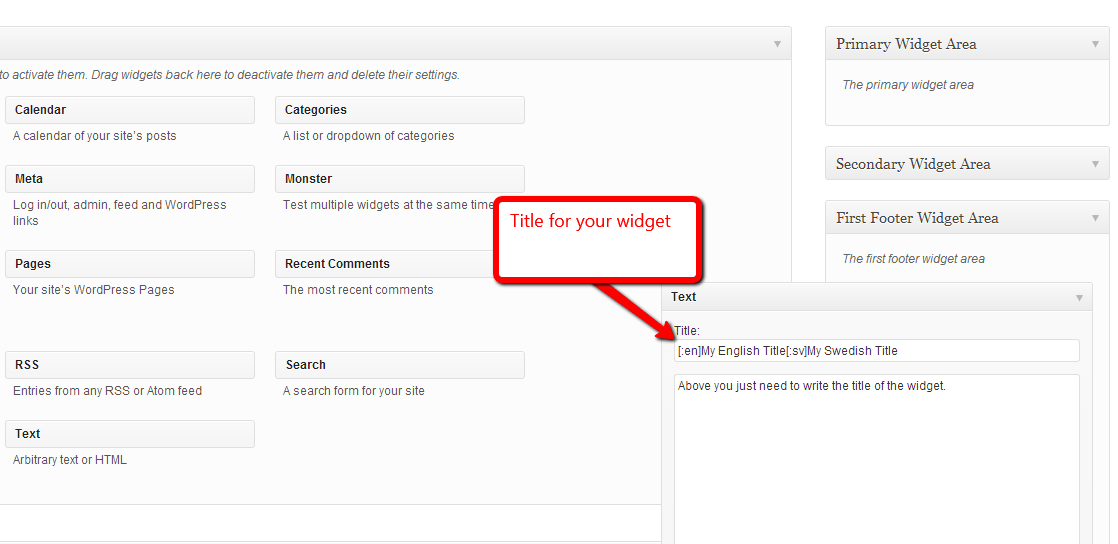
To translate the widget title you just need to drag and drop your widget and put the following code in your field.
[:en]My English Title[:sv]My Swedish Title
widget
It’s really easy to convert your WordPress based website in different language withInkThemes  Try and test it by yourself.